
The Ring Group module allows administrators to group multiple extensions or call destinations so that incoming calls can be distributed among several users or devices. It is commonly used for departments such as support, sales, or reception, where multiple team members are responsible for answering incoming calls.
The module supports different call routing strategies, such as simultaneous ringing, where all extensions ring at the same time, or sequential ringing, where calls are forwarded from one extension to another in a defined order. This helps improve call handling efficiency and ensures incoming calls are answered promptly.
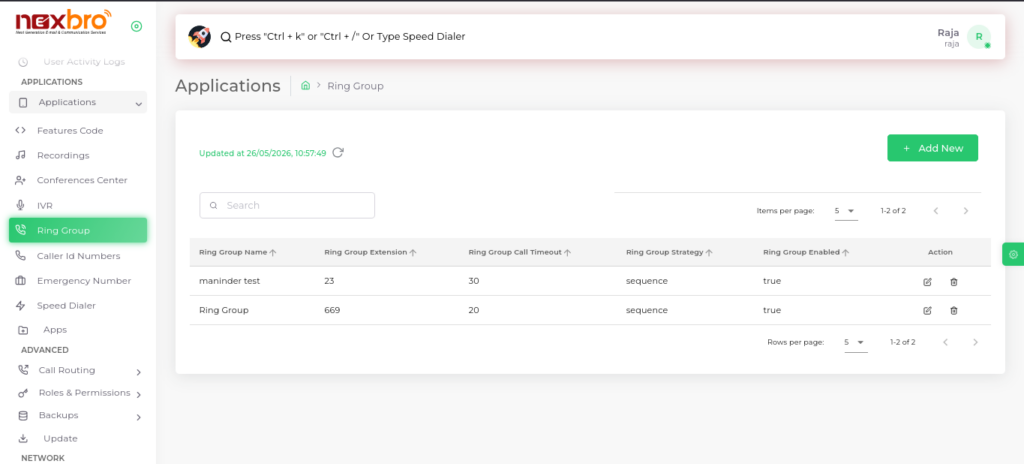
This screen displays the list of all created ring groups along with their details.
The admin can click on “Add New” to create a new ring group.
Add Ring Group
The following details need to be configured:
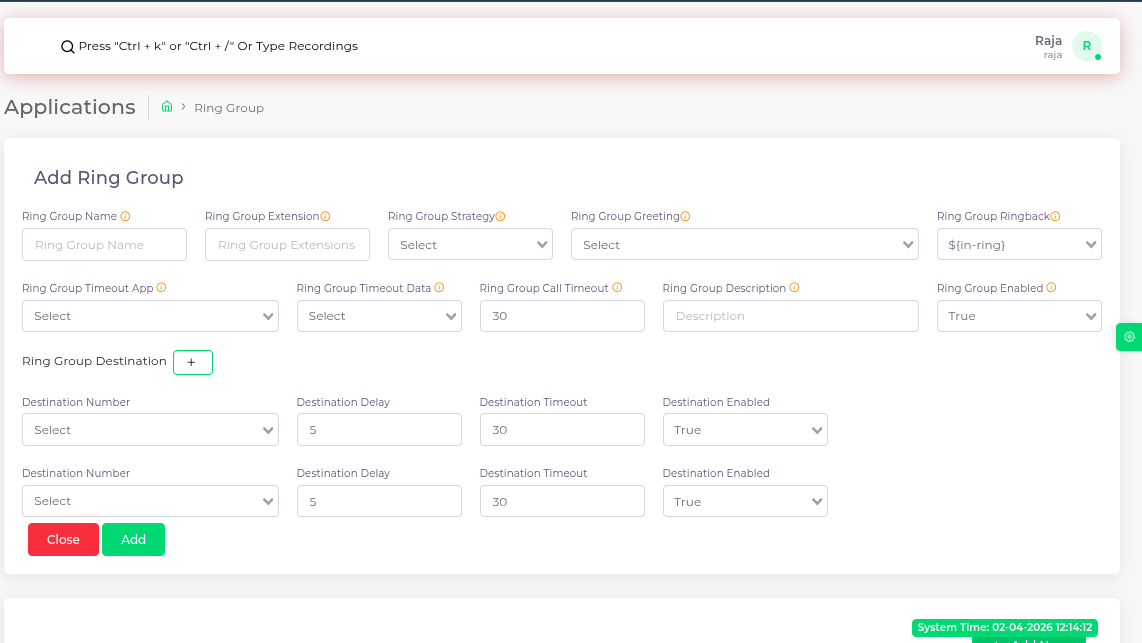
This screen allows the admin to create a new ring group.
Click the “Add” button to save the ring group.
Update Ring Group
This screen is used to modify an existing ring group.
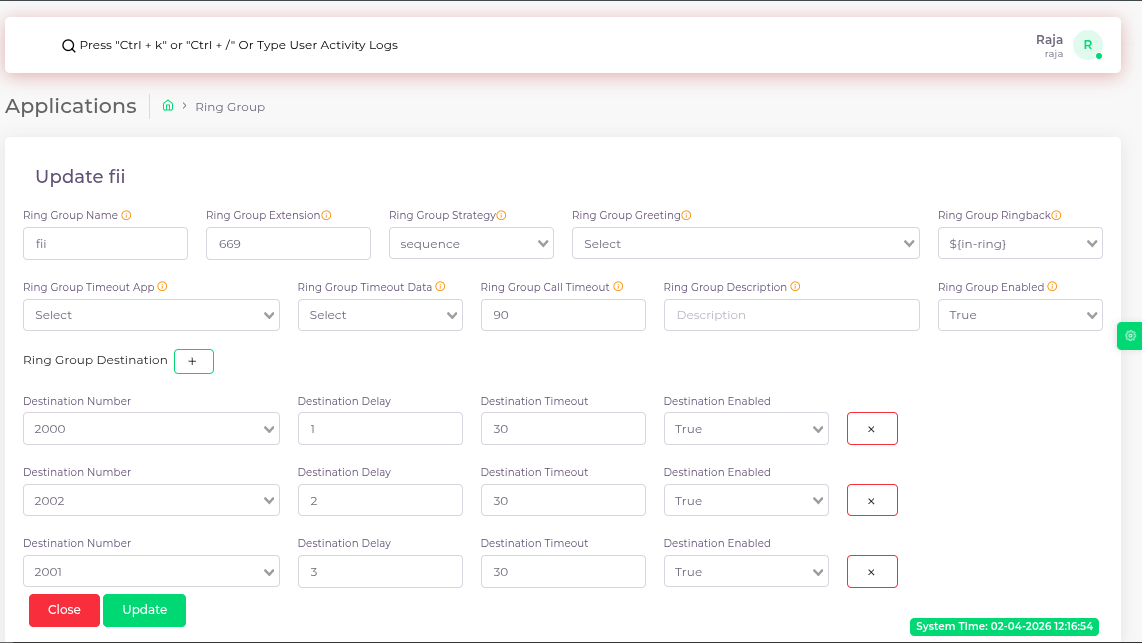
Click the “Update” button to save changes.
| Fields Name | Description |
| Ring Group Name | The name assigned to the ring group. |
| Ring Group Extension | The extension number used to access the ring group. |
| Ring Group Strategy | Enterprise: Calls each extension in order until answered, starting with the first like a ranked list, Random: Rings a randomly selected extension from the group, Rollover: Rings extensions one by one and moves to the next if there is no answer, Sequence: Rings extensions in a fixed order every time, Simultaneous: Rings all extensions at the same time until someone answers. |
| Ring Group Greeting | A recording file played when the ring group receives a call. |
| Ring Group Ringback | The sound played to the caller while waiting for the call to be answered. |
| Ring Group Timeout App | An application or action triggered when a call times out. |
| Ring Group Timeout Data | Extension or other data associated with the timeout action. |
| Ring Group Call Timeout | The duration to wait before considering the call unanswered. |
| Ring Group Description | Indicates whether the ring group is currently active or not. |
| Ring Group Enabled | Indicates whether the ring group is currently active or not. |