
The Speed Dialer module allows administrators to configure short dialing codes that are linked to specific phone numbers or destinations. Users can quickly call frequently used numbers by dialing a short code instead of entering the full phone number.
This feature helps improve calling efficiency, reduces dialing time, and makes it easier for users to contact commonly used extensions, departments, or external numbers within the IP-PBX system.
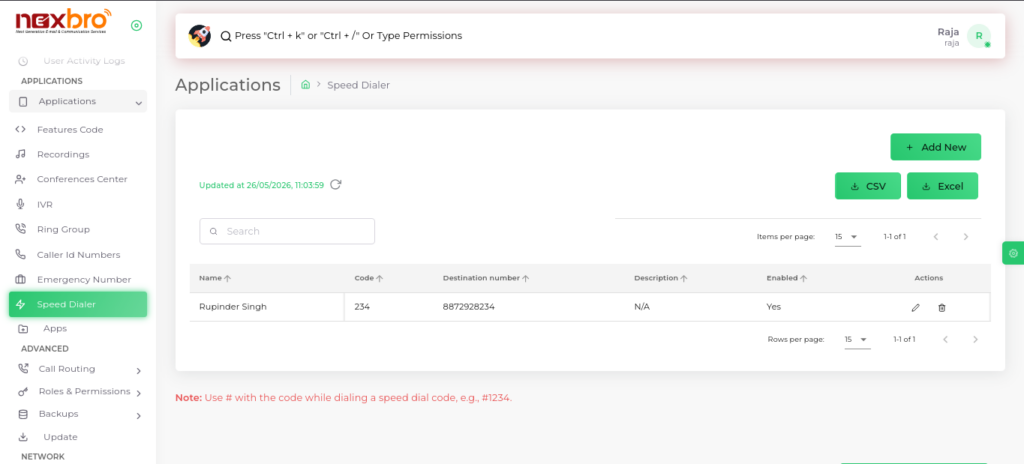
This screen displays all configured speed dial entries.
CSV & Excel Download
This option is visible in the top-right corner of Screen
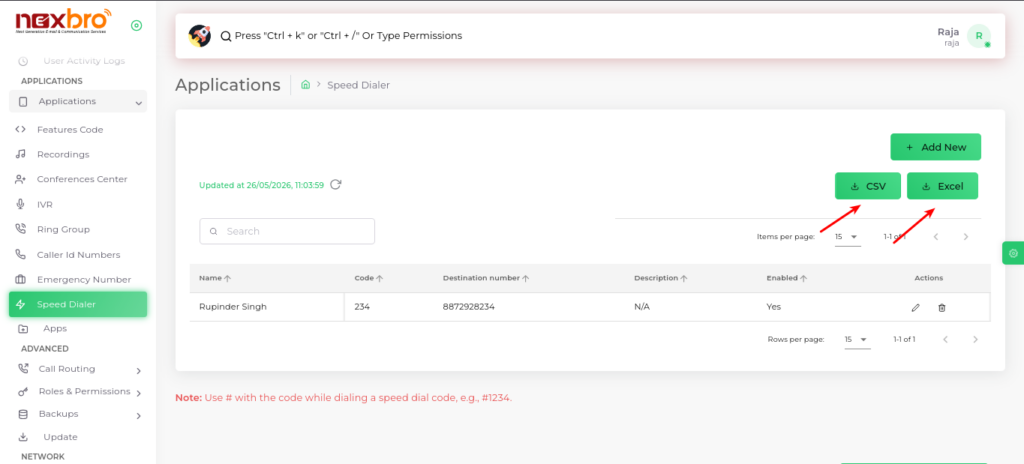
The system provides export functionality to download speed dial data.
Add Speed Dialer (Single Entry)
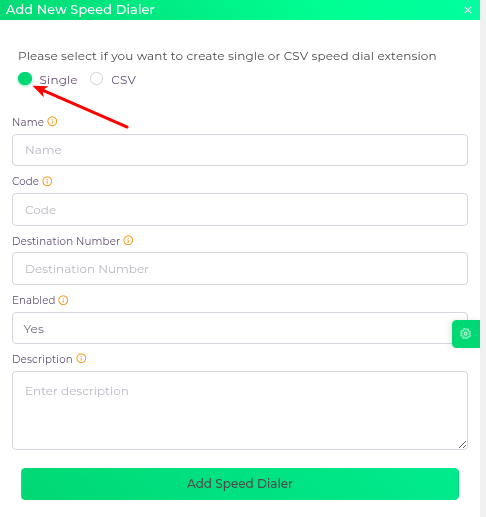
This screen allows the admin to create a new speed dial entry manually.
Add Speed Dialer (CSV Upload)
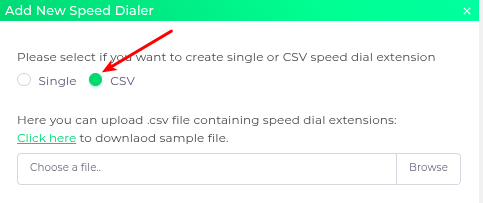
This screen allows bulk upload of speed dial entries using a CSV file.
| Fields Name | Description |
| Name | A friendly name or label to identify the speed dial entry (e.g., ‘Support Team’ or ‘Manager’). |
| Code | The short dial code or number used to quickly call the destination (e.g., 101 or 201). |
| Destination Number | The actual phone number that the code will dial. |
| Enabled | Indicates whether the speed dial entry is active or inactive. When disabled, the code will not work. |
| Description | A brief note explaining the purpose or details of this speed dial entry (e.g., ‘Direct line to IT helpdesk’). |
Update Speed Dialer
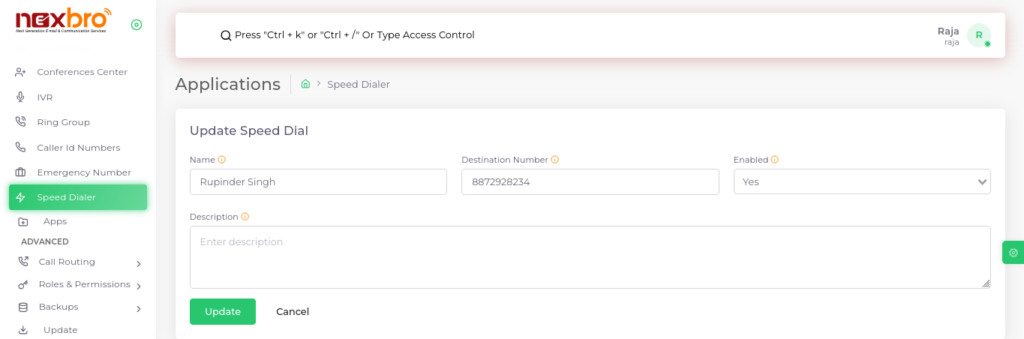
This screen is used to modify an existing speed dial entry.
- Edit name, code, destination number, and description
- Enable or disable the entry
- Save changes using the “Update” button